Datasets
A dataset consists of structured data of the same type: orders, products, customers, etc. (think of it as a sheet in Excel). Each individual order, product, or customer is a record (a row in that sheet).
A dataset defines the properties of each of its records. For example, a product may have a photo, name, and price, while a customer may have a name, phone number, and address.
In addition to properties, datasets describe what states records can be in. Using the same example, products can be in stock or sold out, while customers can be new, loyal, or lost.
Thanks to representations, you can work with records within different datasets in different ways. It can be more convenient to track the state of orders on a Kanban board or a Gantt chart, view products in a table, or analyze customers using a sales funnel. Multiple representations can be used simultaneously to see the same data from different angles.
Depending on their roles, users may have different levels of data access. For example, a delivery person should not know the cost price of what they are delivering, and a cook should not have access to information about the customer.
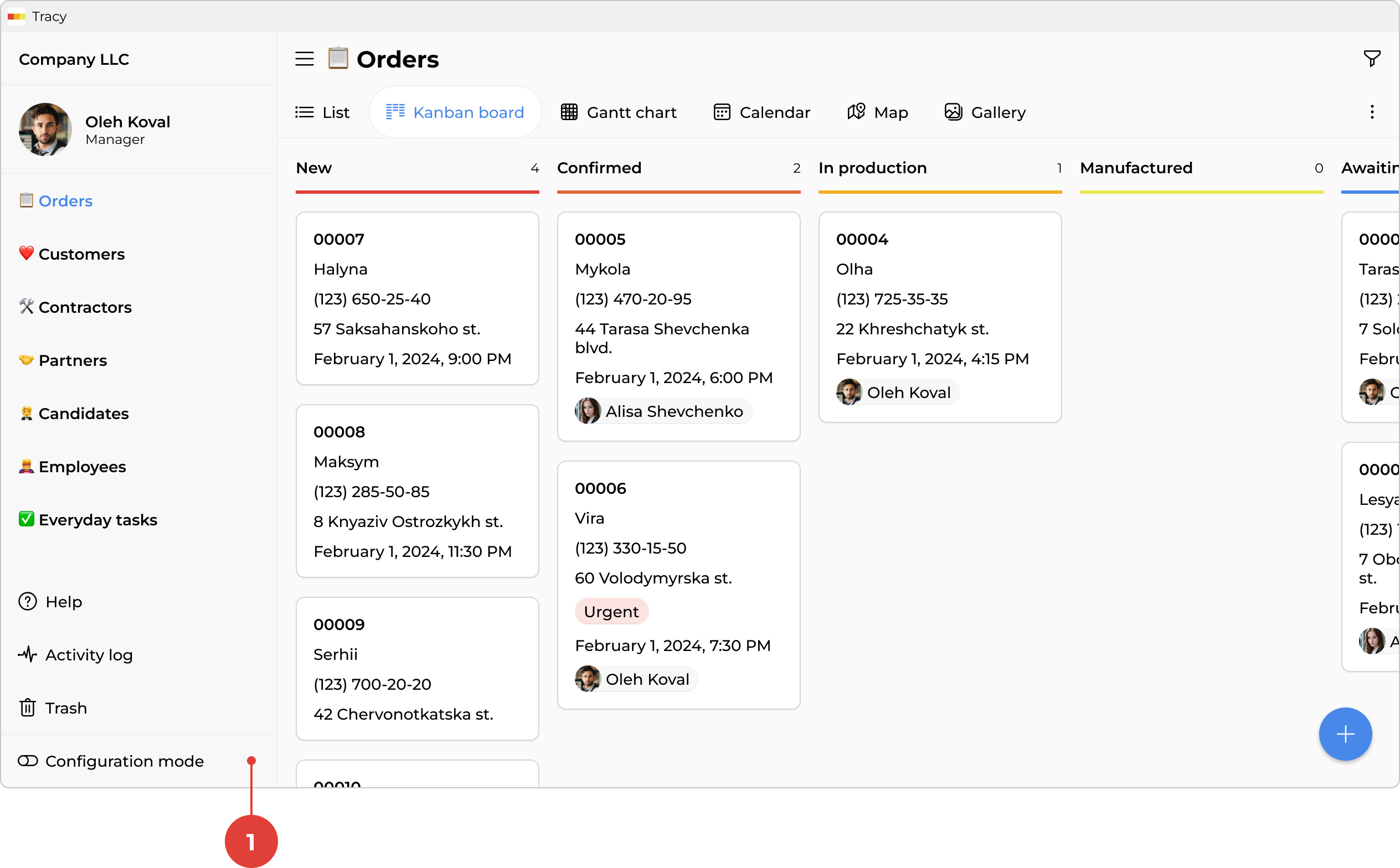
All datasets are displayed in the catalog in the sidebar. To manage them, activate the configuration mode by clicking the corresponding toggle ① at the bottom of the sidebar.
Adding a Dataset
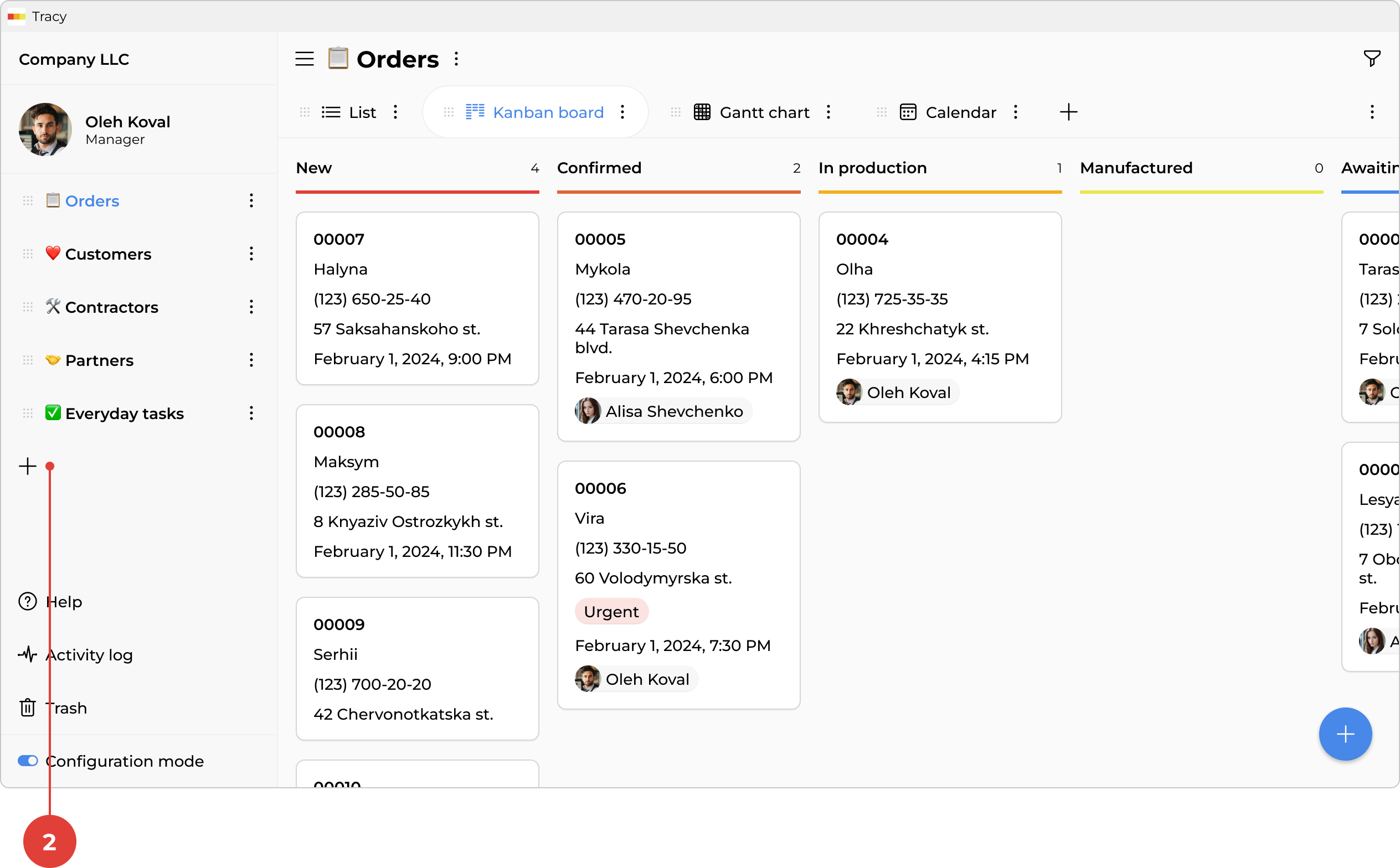
To add a dataset, activate configuration mode, click the “+” icon ② below the catalog in the sidebar, and select the appropriate option from the context menu.
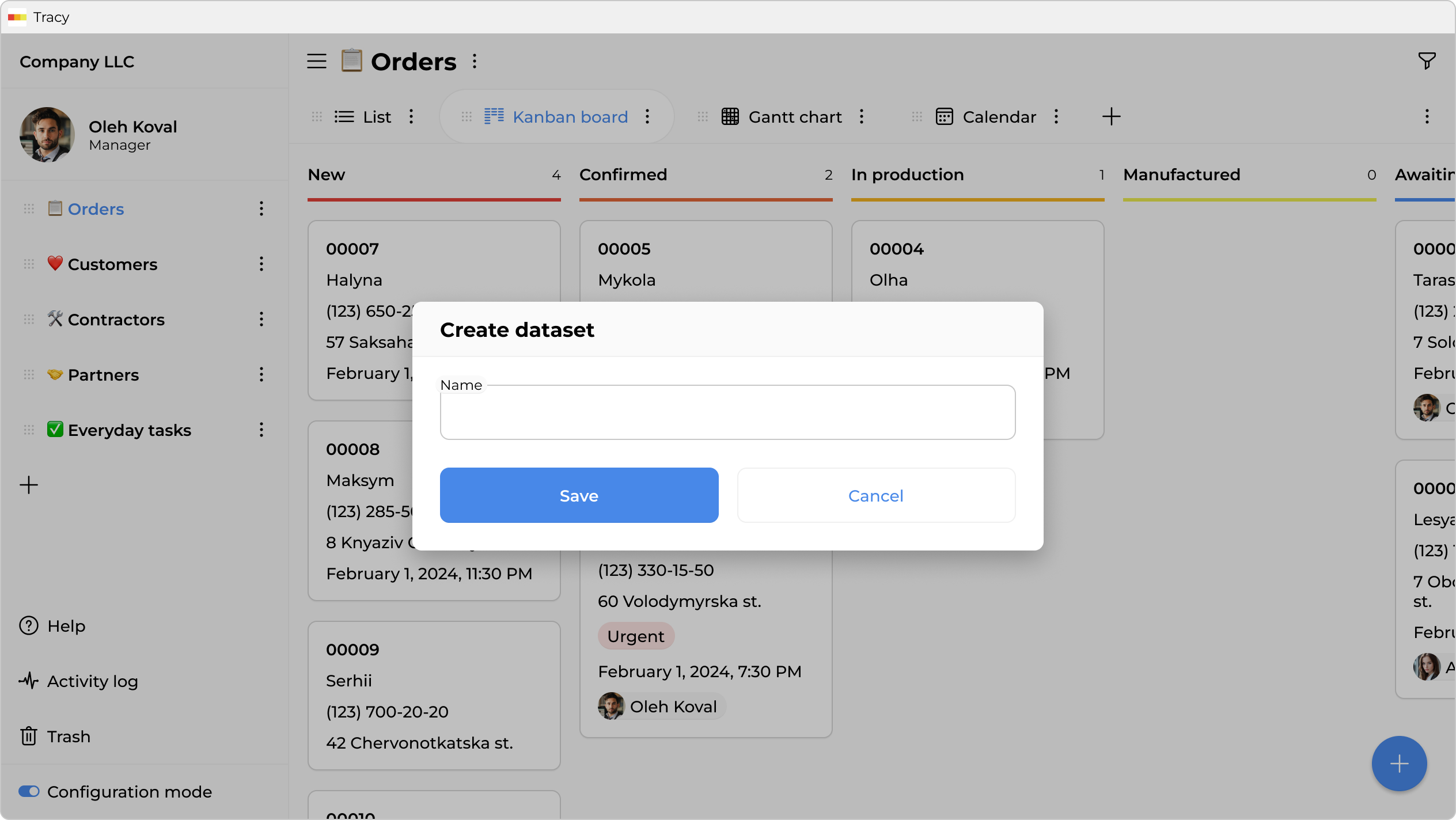
In the window that opens, specify the name of the dataset and click “Save”. Once created, the dataset will open immediately—with three initial properties and states to start from.
Configuring a Dataset
To access a dataset’s settings—its properties, states, and access—activate configuration mode and select “Configure” from the context menu next to the dataset name in the sidebar catalog or next to its name in the main area.
Managing Representations
Representations are managed directly in the main area. Open a dataset, activate configuration mode, and go to the representation selector at the top of the main area—there you can switch between existing representations and add new ones.
Renaming a Dataset
To rename a dataset, activate configuration mode and select “Rename” from the context menu next to its name in the sidebar catalog or in the main area.
Duplicating a Dataset
To duplicate a dataset, activate configuration mode and select “Duplicate” from the context menu next to its name in the sidebar catalog or in the main area.
Activating and Deactivating a Dataset
Deactivated datasets are not shown in the sidebar catalog for regular users—they are only visible to users with extended or full access to system settings, and only in configuration mode. This is useful for hiding outdated data without deleting it, or for setting up a new dataset without showing it to the rest of the team until it is ready.
To activate or deactivate a dataset, activate configuration mode and select the appropriate option from the context menu next to its name in the sidebar catalog or in the main area.
Deleting a Dataset
To delete a dataset, activate configuration mode and select “Delete” from the context menu next to its name in the sidebar catalog or in the main area.