Properties
Properties are individual pieces of data that make up records. The list of properties for each record is determined by the dataset to which it belongs. For example, records in the “Products” dataset may have properties such as “Photo”, “Name” and “Price”.
Each property has its own type (see below). The type of property determines how its data is stored, edited, displayed, and used.
Since properties belong to datasets, managing them requires going to the settings of the relevant dataset. To do this, activate configuration mode by clicking the corresponding toggle at the bottom of the sidebar, then select “Configure” from the context menu next to the dataset name in the sidebar catalog or next to its name in the main area. On the dataset configuration screen, properties are listed vertically on the left.
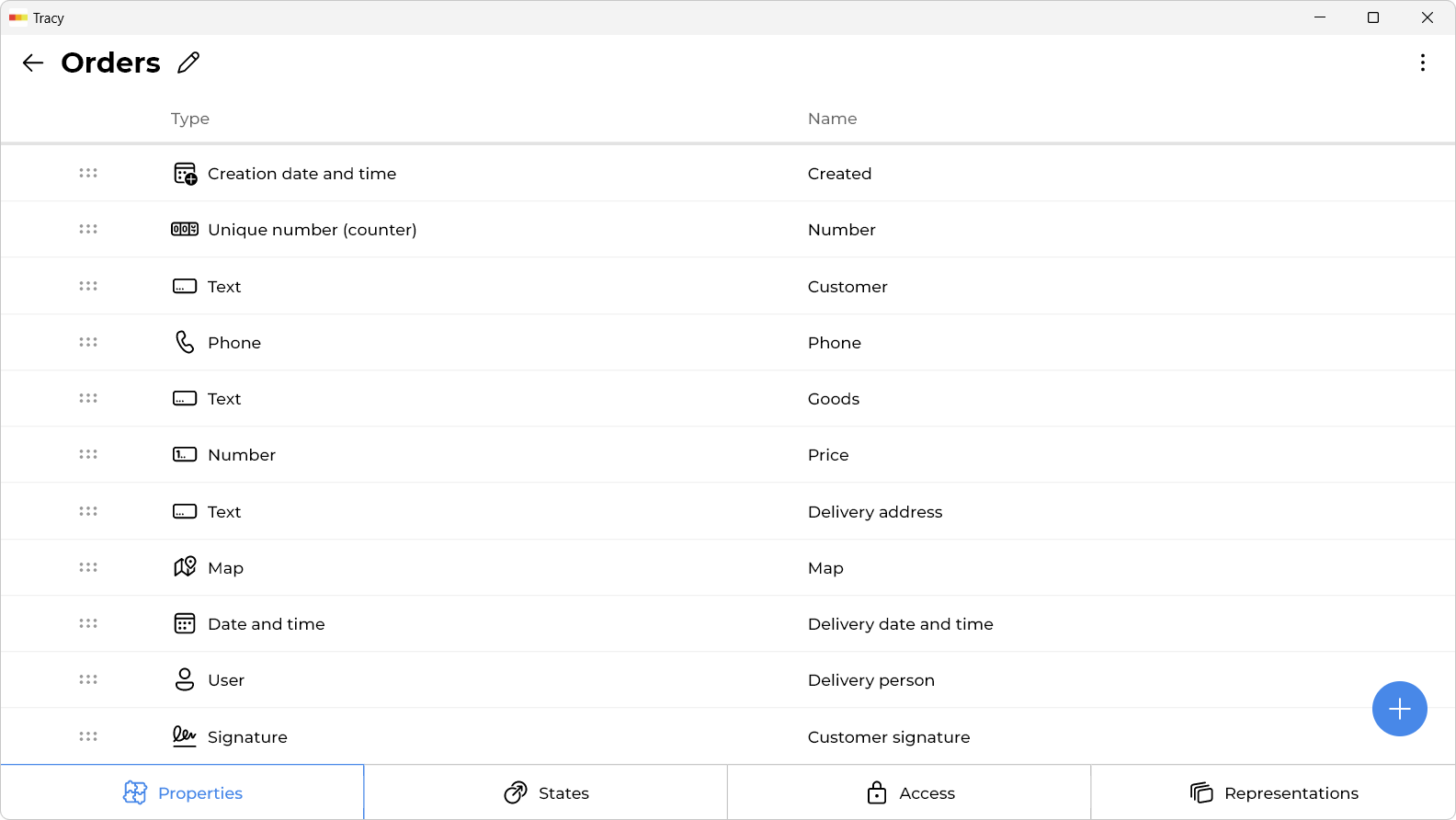
Adding a Property
To add a property, click the “+” icon at the bottom of the properties list.
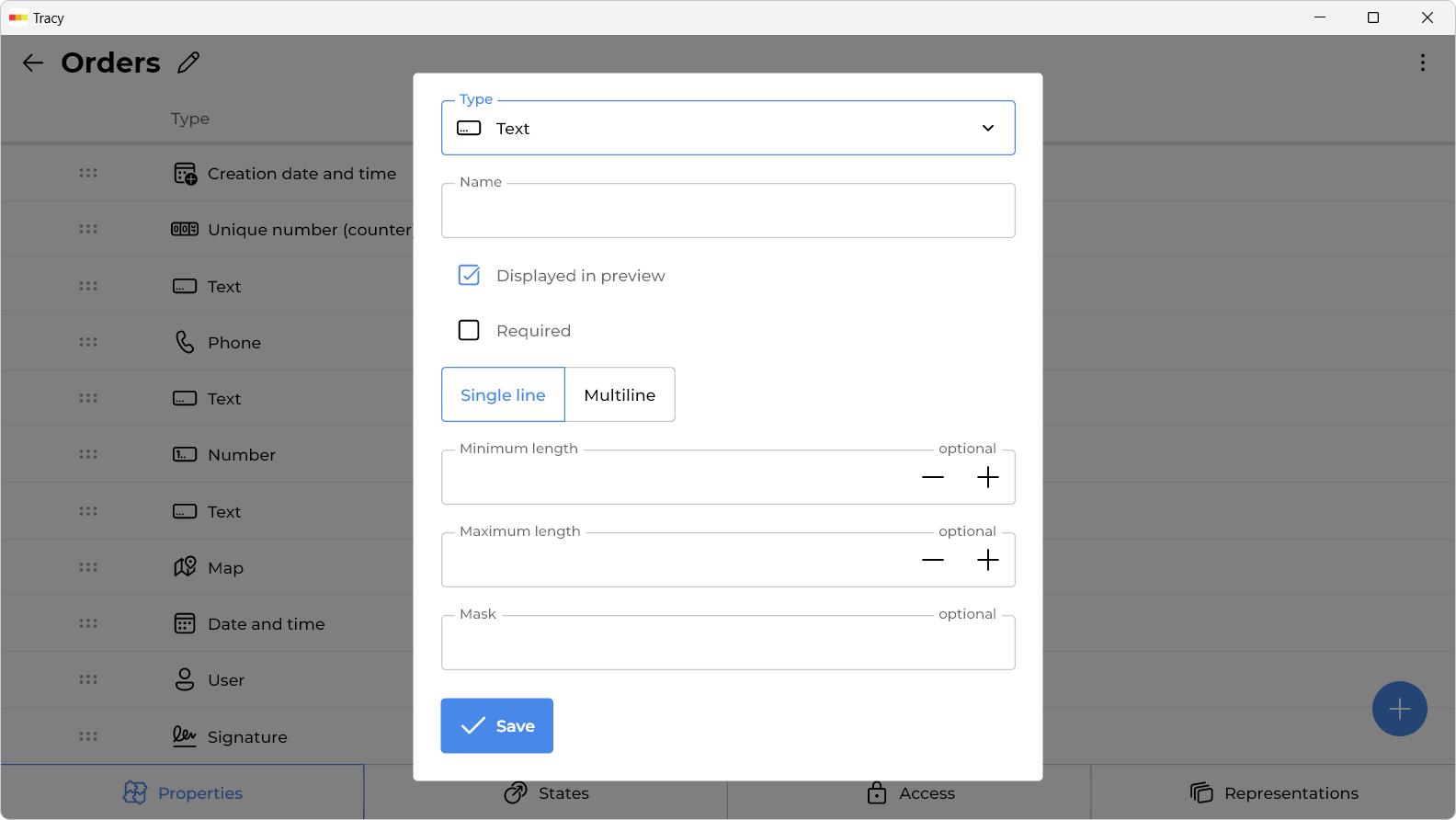
In the window that opens, specify the name of the property, its type, whether it should be used as the title, any additional parameters depending on the selected type, and click “Save” button.
Renaming or Editing a Property
To change the name or other parameters, click on the property or select “Edit” from its context menu, make the necessary changes in the window that opens, and click the “Save” button.
Reordering Properties
To change the order of properties, drag a property to the desired position using the nine-dot handle to the left of its name.
Organizing Properties into Columns
On the dataset configuration screen, properties are distributed between two groups: a wide column and a narrow column. To change where a property appears, simply drag it into the appropriate group.
If all properties are placed in a single column, the record form will be displayed as a single column of the corresponding width. If properties are split between both columns, devices with large screens will show them side by side—wide on the left, narrow on the right. On devices with small screens, the narrow column will appear below the wide one.
Deleting a Property
To delete a property, click on it and select “Delete” from the drop-down context menu in the window that opens.
Property Types
Record Creation Date and Time
Stores the date and time of record creation. It is filled automatically and cannot be edited.
Record Author
Stores the user who created the record. It is filled automatically and cannot be edited.
Unique Record Number (Counter)
Stores a unique record number within its dataset, which is not repeated even when records are deleted (this does not apply to temporary example records created during registration). It is filled automatically and cannot be edited.
Flag (Yes or No)
Stores “yes” or “no”. For example, “Product in stock: yes”.
Number
Stores an integer or decimal number. Optionally, it allows you to limit the minimum and maximum value.
Text
Stores single or multiline text. Optionally, it allows you to limit the minimum and maximum length and specify a mask to standardize data format.
Phone
Stores a phone number with the ability to make calls (through an external application). Optionally, it allows you to specify a mask to standardize data format.
Stores an email address with the ability to create messages (through an external application).
Link
Stores a link with the ability to view it in a browser (through an external application).
Option(s) From List
Stores one or more option selected from a predefined set.
Date and Time
Stores only the date or date and time. Optionally, it allows you to limit the minimum and maximum value.
Duration
Stores duration in hours, minutes and seconds. Optionally, it allows you to limit the minimum and maximum value.
Image(s)
Stores one or more images with the ability to view and download them.
File(s)
Stores one or more files with the ability to download them.
Colored tags
Stores one or more option selected from a predefined set.
Rating
Stores an integer number between 1 and 5 and displays it as stars.
Barcode
Generates and stores a barcode in one of the 23 supported formats (including QR codes).
Location (on map)
Stores a location with the ability to set and view it on a map.
Signature
Stores a signature with the ability to create it.
User(s)
Stores one or more users. Optionally, it allows you to limit their role and maximum number.
Record(s)
Stores one or more records of a specified dataset. Optionally, it allows you to limit their maximum number.
Comments feed
Stores text comments. Each comment has an author and a date and time of creation.