Subscription and Billing
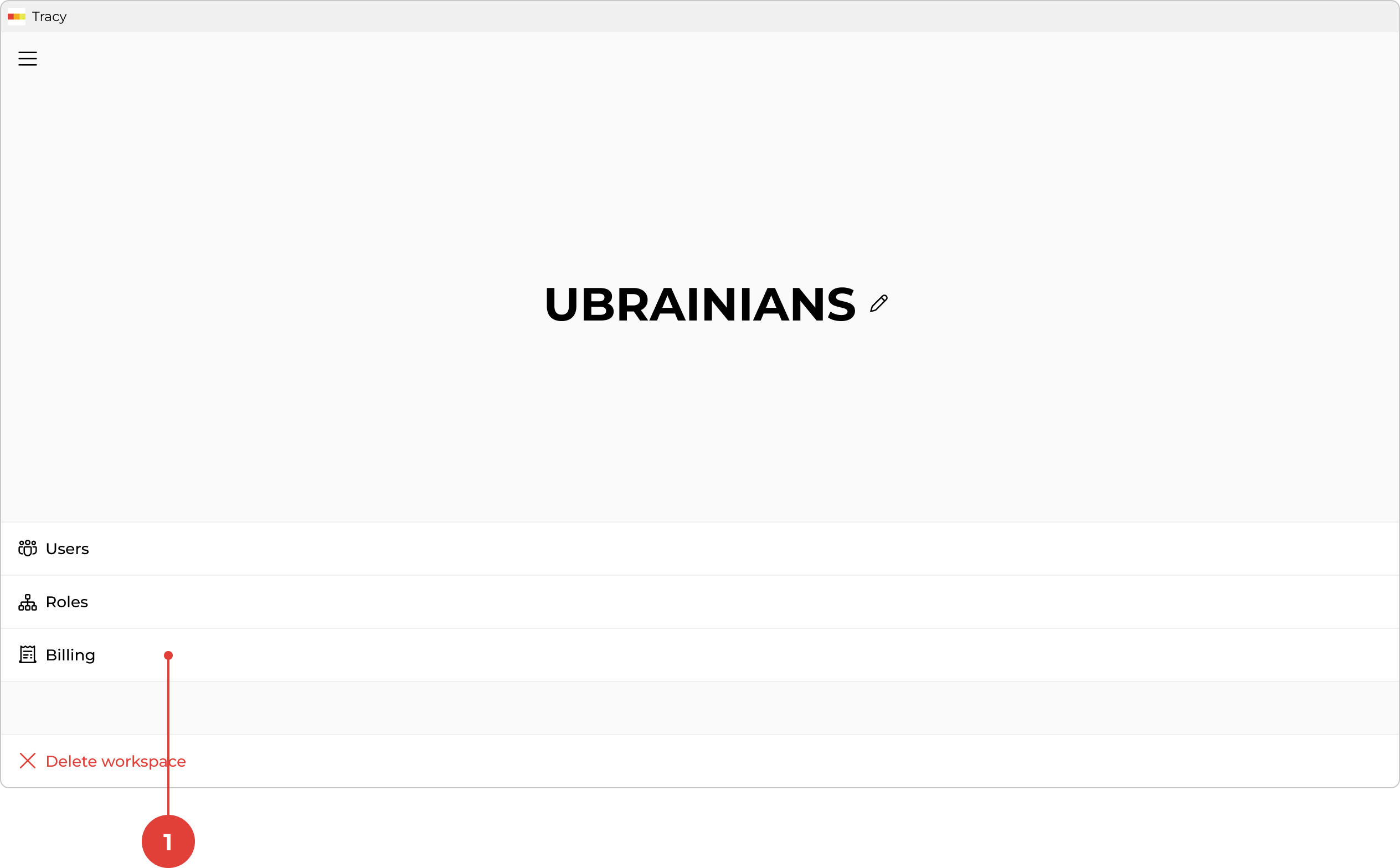
To manage subscription and billing, first go to the workspace screen by clicking its name in the sidebar, then click “Billing” ①.
Limits
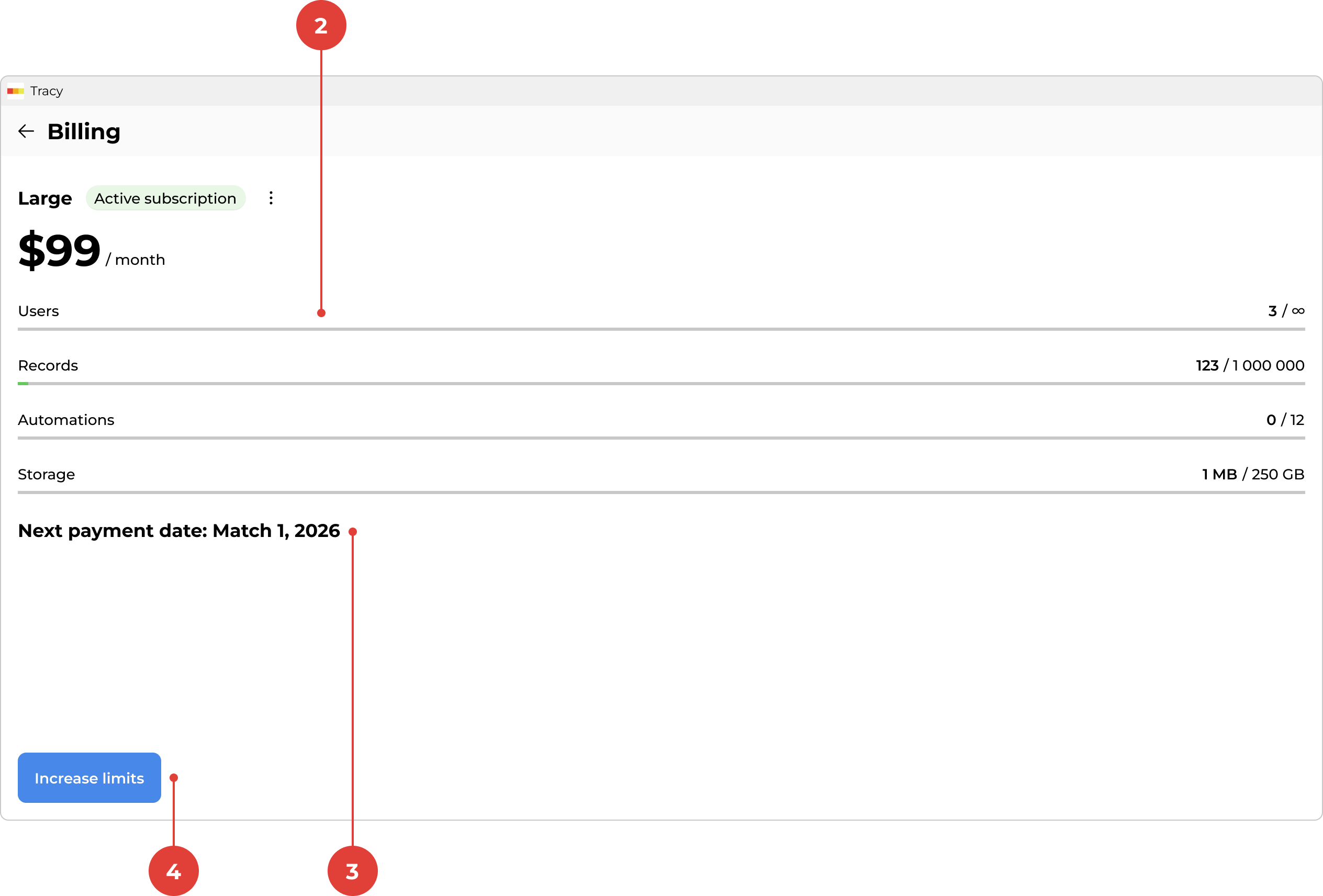
The billing screen displays four indicators showing the current usage of your workspace resources ②: users, records, automations, and storage. Each indicator shows how much of the resource has been used and how much is available under your current plan.
The color of each indicator depends on the remaining amount: green — more than 20% remaining, orange — less than 20%, red — less than 10%.
For details on the limits of each plan, visit tra.cy/uk/#prices.
Payments
Below the indicators, you will find the next payment date ③, the amount and date of the last payment, and a button to view your payment history.
Choosing or Changing Your Plan
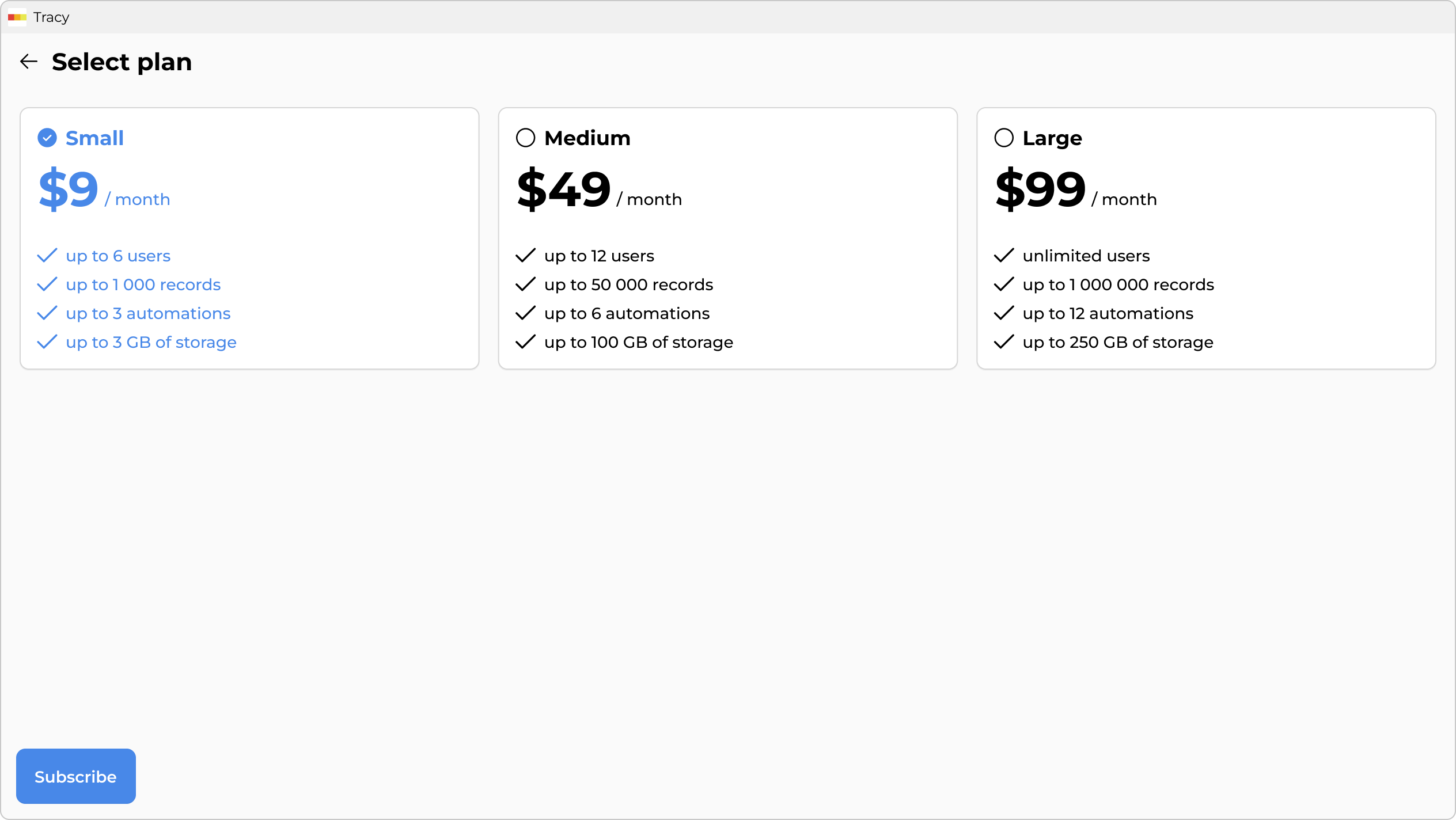
To subscribe or change your current plan, click “Increase limits” ④ at the bottom of the screen—a list of available plans will appear. Select the one you need and confirm the change.