How to Hide a Column in Google Sheets or Excel So No One Truly Sees It? (Spoiler: It’s Often Impossible, and Here’s Why)
Every business has a lifecycle for its tools. Every startup, every new project, every idea starts with a blank sheet. More precisely—a blank electronic spreadsheet.
Launching a new sales vertical? Created a spreadsheet. Started hiring employees? Spreadsheet. Need to track orders? Naturally, Google Sheets or Excel. It’s fast, free, and familiar to everyone. At this stage, flexibility is your best friend. You can build processes literally on the fly: add columns, change formulas, and so on.
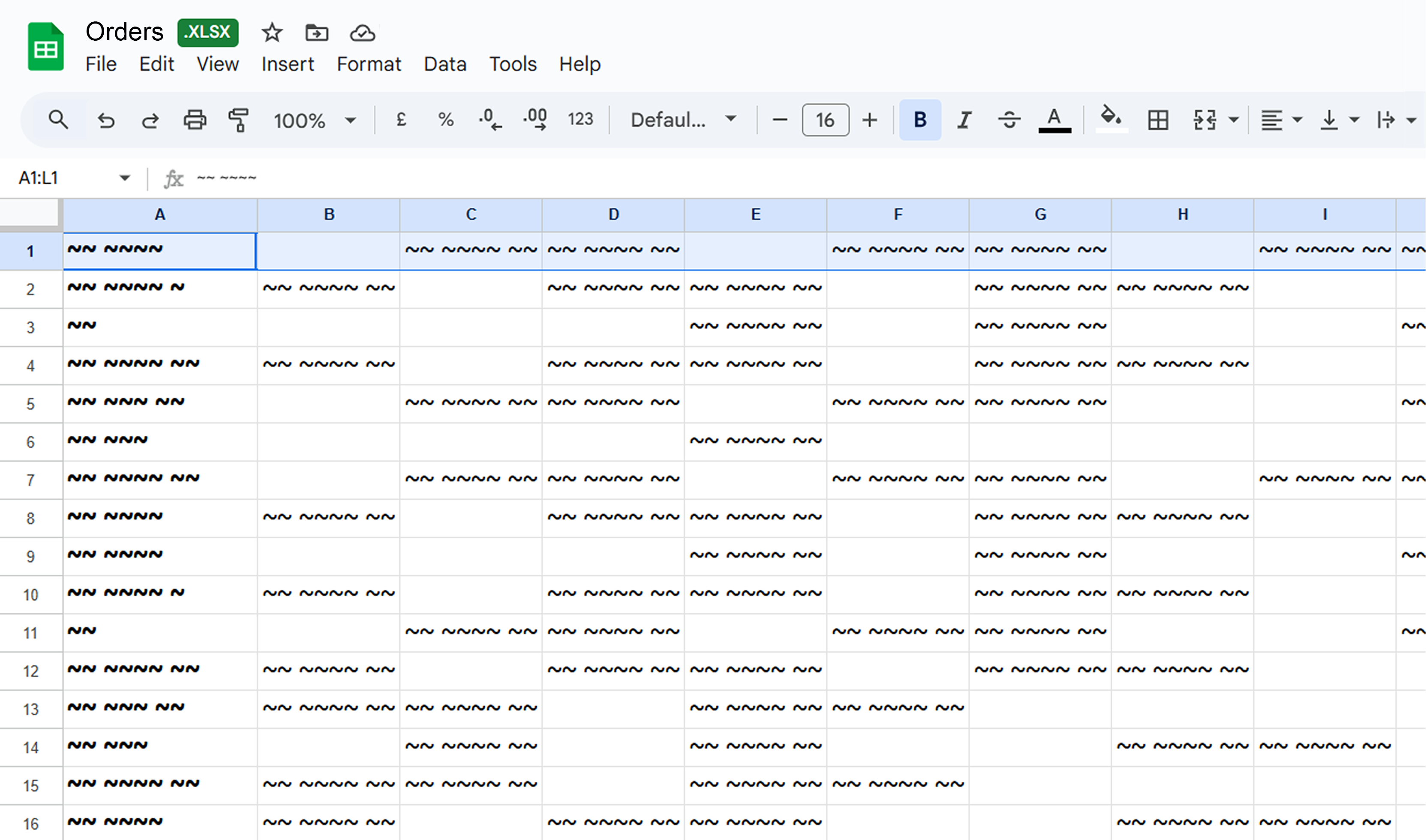
But then the business starts to grow.
It’s no longer just two people in the table, but ten. Then twenty. Managers, contractors, couriers, and accountants appear. Suddenly, the very flexibility that helped at the start begins to work against you. Questions arise that you hadn’t thought about before: “How do I forbid editing of a single cell?”, “How do I hide a column in Google Sheets from an intern but keep it for the manager?”, “Who deleted the margin calculation formula?”.
In this article, we will analyze in detail why attempts to turn Excel into a business management system are doomed to fail, why “hidden” data is actually open to everyone, and how modern tools like Tracy solve this problem at the architectural level.
The Point of No Return: When Sharing Becomes a Problem
As soon as the concepts of “confidentiality” or “zone of responsibility” appear in your process, the spreadsheet stops being a helper and becomes a source of risk.
Let’s look at two real examples from business. The situations are different, but the root of the problem is the same—the architecture of spreadsheet editors.
Case Study #1: “Hunger Games” in a Farm Produce Franchise
Imagine a successful chain of natural food stores. There is a main supplier (franchisor) and dozens of partner stores (franchisees). The product ordering process was organized as simply as possible: one large Google Sheets file.
How it worked: Every morning, the warehouseman updated the stock balances. Store representatives would enter the file, find their column, and put a number next to the desired item (e.g., “Cottage Cheese”).
What went wrong: Since Google Sheets is a space for collaboration, the principle “everyone sees everything” applies.
- Competitive Intelligence: Store A could clearly see what Store B was ordering. They could analyze others’ sales, creating an unhealthy atmosphere.
- Chaos and Conflict: The “fun” began when a scarce item was running low. A partner might log in later, see that the limit for cheese was exhausted (others had ordered everything), and… simply change the number in someone else's column, reducing their neighbor’s order and increasing their own.
- Irresponsibility: Scandals constantly erupted at the warehouse: “I ordered 50 units, why is there 20 in the invoice?”. Tracking exactly who changed a value in a cell among hundreds of edits per day was nearly impossible.
The Verdict: Google Sheets allows you to restrict editing, but it does not allow you to restrict the visibility of data at the column or row level for different users within a single file.
Case Study #2: HR Processes and Confidentiality
Let’s look at an example of an IT company using spreadsheets to maintain a candidate database. The hiring process is classic: screening with a recruiter, then a technical interview, and finally—an offer.
The Complexity: A spreadsheet is flat by nature. One row stores everything: contacts, resume links, salary expectations, and the recruiter's notes after the first conversation (e.g., “seemed a bit passive” or “very active, might not fit the team culture”).
The problem appeared specifically at the stage of handing the candidate over to the technical specialist.
If you give the Tech Lead access to the table, they inevitably see the desired salary figure and the recruiter’s subjective impressions before the interview begins. This instantly creates cognitive bias. Instead of an objective assessment of skills (“Hard Skills”), the interviewer subconsciously starts evaluating whether the person is “worth” that money or looking for confirmation of the recruiter’s doubts. The purity of the process is violated.
How they solved it in practice: To avoid this influence, the team effectively abandoned collaboration in the document at this stage. The recruiter turned into a “human clipboard”:
- Manually copied the resume link and sent it to the Tech Lead via Telegram.
- The Tech Lead conducted the interview and wrote feedback (“pros/cons”) back in the messenger.
- The recruiter copied this text from the chat and pasted it back into the table to preserve history.
As a result, expensive specialists wasted hours of work time on mechanical data forwarding back and forth simply because they couldn’t set up a simple rule in the table: “The Tech Lead sees the resume but does not see the Salary column and HR comments”.
Technical Deep Dive: Why “Hidden” Doesn’t Mean “Protected”
When business owners or managers face these problems, the first thing they do is go to a search engine with the query: “How to hide a column in Google Sheets from specific users” or “Excel data protection password".
The internet offers a multitude of solutions: from the “Protect Sheet” function to complex scripts. But from an information security perspective, most of these methods are an illusion of protection. Let’s break down why this doesn’t work.
1. The Myth of VeryHidden Sheets in Excel
Advanced Excel users know about the xlVeryHidden property, which can be activated via the code editor (VBA). Such a sheet disappears from the standard “Unhide” menu. Often, purchase price lists or salary calculation formulas are hidden there.
Why this isn’t protection:
- Editor Accessibility: Pressing Alt+F11 is enough to get into the code editor. Even if the table developer set a password, the internet is full of instructions on how to bypass this protection in minutes without being a hacker.
- Reference Vulnerability: Even when a sheet is hidden, the data in it is available for calculation. If someone creates a formula
=SecretSheet!A1on a new clean sheet and drags it down, Excel will obediently show all the “secret” content. - File Nature: An Excel file (.xlsx) is essentially a ZIP archive of XML files. If you sent someone the file, you physically transferred all the information contained within it. Sheet passwords are removed in seconds by free utilities. (To be fair, a password protecting the entire file, rather than individual sheets, is implemented reliably using encryption, but that prevents access entirely).
2. The IMPORTRANGE Vulnerability in Google Sheets
In cloud spreadsheets, users often try to create a system of “Master File” (where everything is) and “Client File” (where only a part is), connecting them with the IMPORTRANGE function.
It seems like a solution: you create a separate table for the manager that pulls data only from the necessary columns of the main table.
The Catch: When you first write the formula and click “Allow Access”, you create a permanent token of trust between File A and File B. The system doesn’t check who is looking at the file. It only checks the permission to connect the files. If the user has Editor rights in their “trimmed” file (which they need to submit reports), they can change the formula.
Instead of:
=IMPORTRANGE("Master_Key", “PublicData!A1:B10")They write:
=IMPORTRANGE("Master_Key", “Salaries!A1:Z100")And Google Sheets will download the entire salary database for them without question because “permission between files has already been granted”. The only way to avoid this is to give “View Only” access, but then the manager cannot work with the document. It’s a dead end.
More Than Just Access: The Logic Problem
Besides security, there is another fundamental problem with spreadsheets—they know nothing about your business process. For Excel or Google Sheets, the order status “New” and “Paid” is just text in a cell.
- You can accidentally “drag” an order from “Processing” to “Archive” without finishing the work.
- You can set the status to “Shipped” while forgetting to enter the invoice number.
- You can change the deal amount after it has been approved.
The spreadsheet will tolerate everything. But your business won’t. Searching for ways to restrict data entry or forbid moving to the next stage without filling in mandatory fields is another headache for integrators, usually solved by complex scripts that constantly break.
Tracy: How It Works When the System Is Designed Correctly
We created Tracy specifically for teams that have already outgrown the capabilities of standard tables but do not have the desire or resources to implement heavy and expensive ERP systems. Tracy combines the speed of a visual constructor with the clear logic of professional software.
At the core of the system are rules that you set yourself. You simply describe the logic of work: who exactly has the right to see or edit each specific field at each stage of the process. You also define transition conditions: what data must be filled in before the system allows the card to be moved further (for example, you cannot switch an order to “Shipped” without specifying the invoice number).
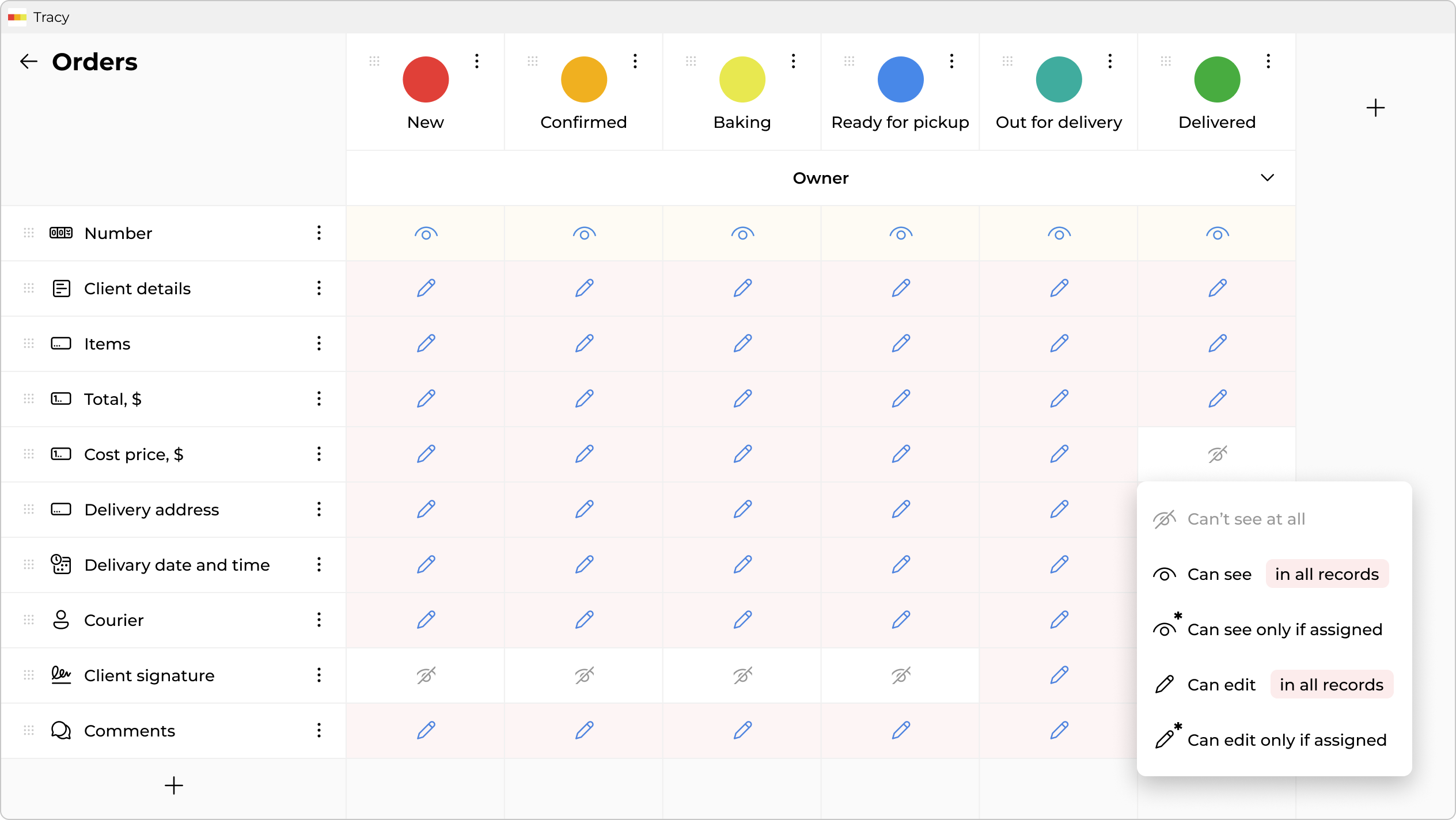
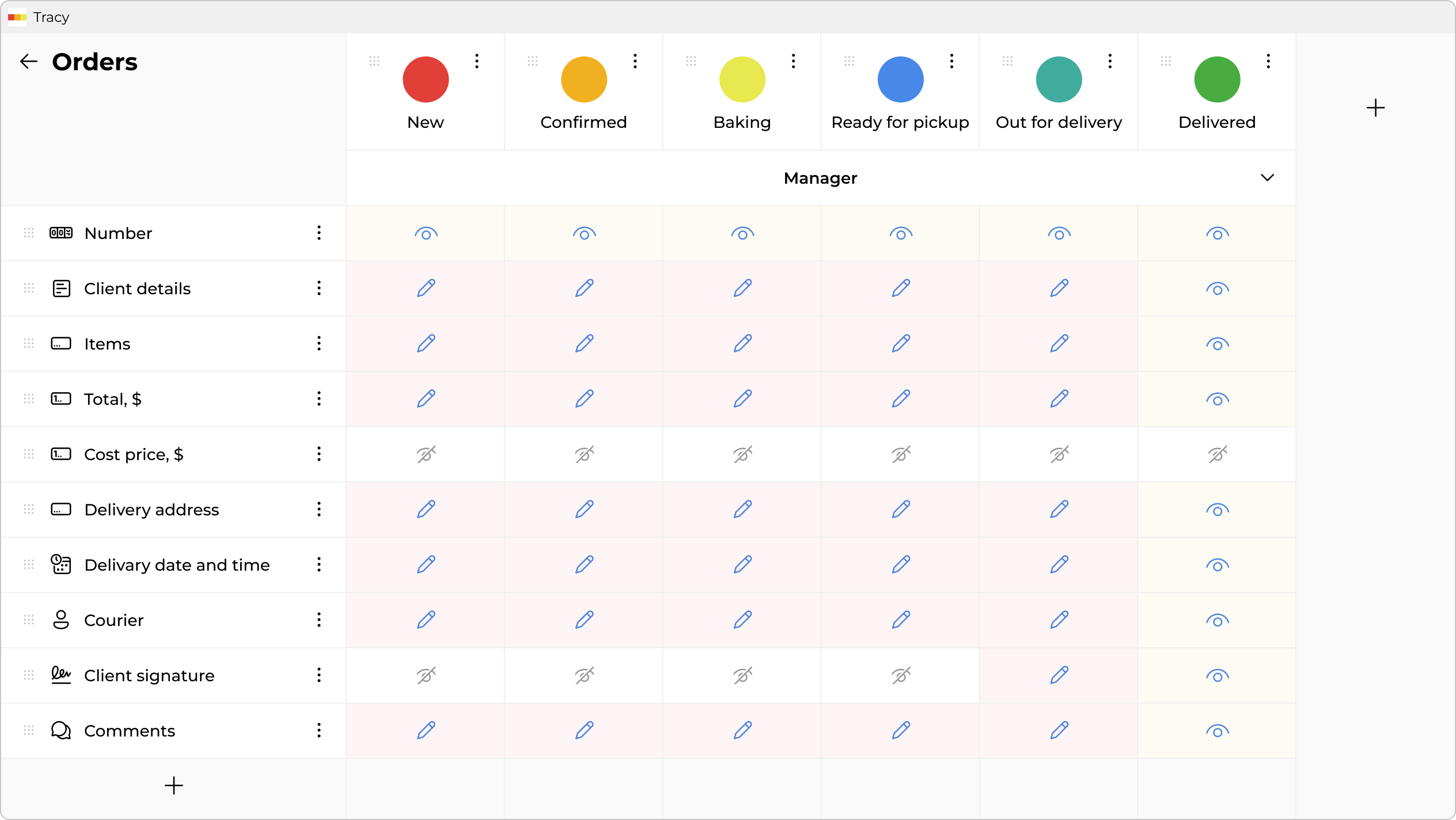
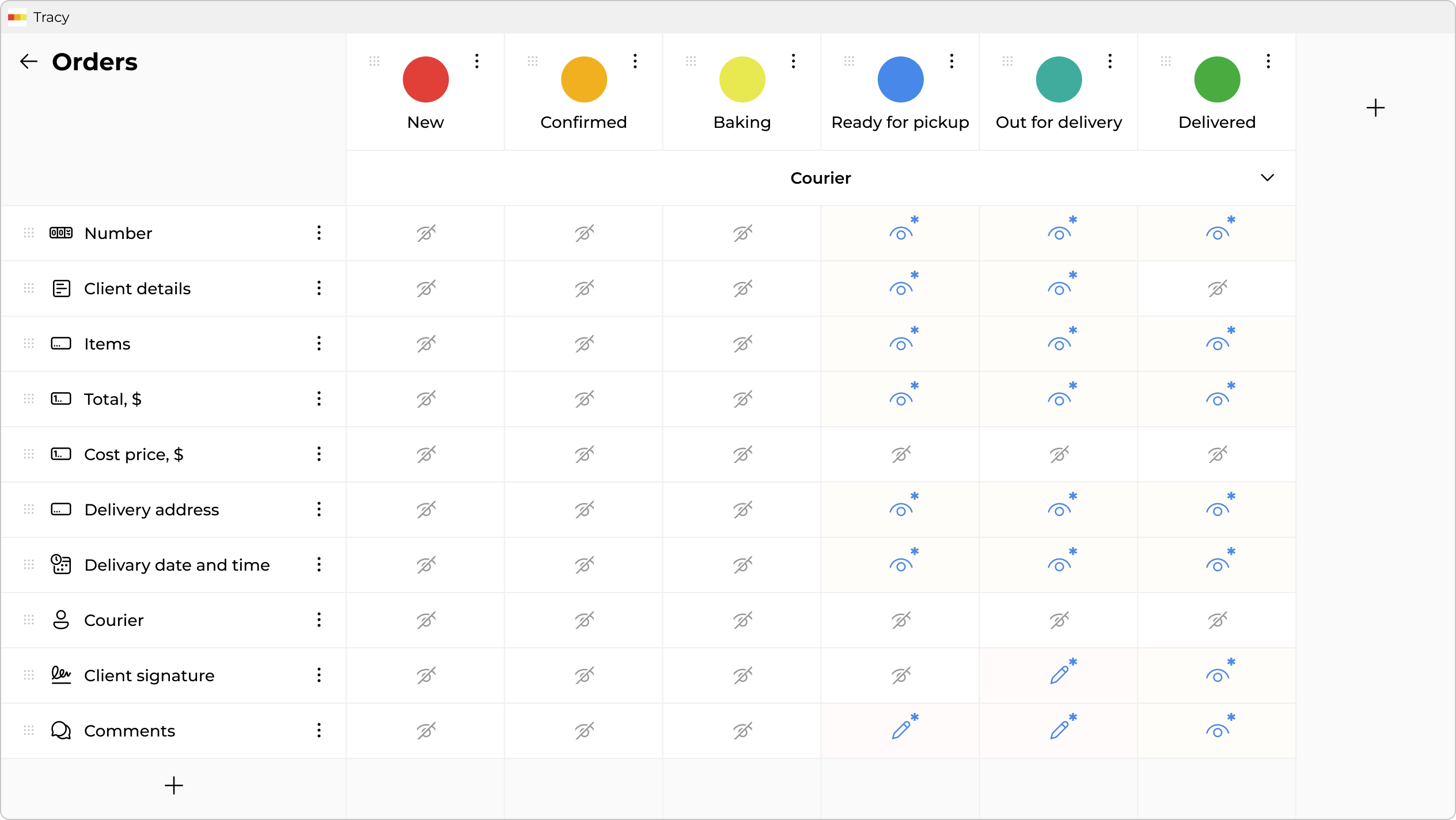
And the main difference “under the hood” is server-level access control. You no longer need to think about how to cleverly “hide” a column from an employee’s eyes. If a user, according to your rules, does not have the right to see certain data—the server simply does not send it to their app. No manipulations with page code or formula changes will work here.
Here is how this solves our cases:
The Franchise Case
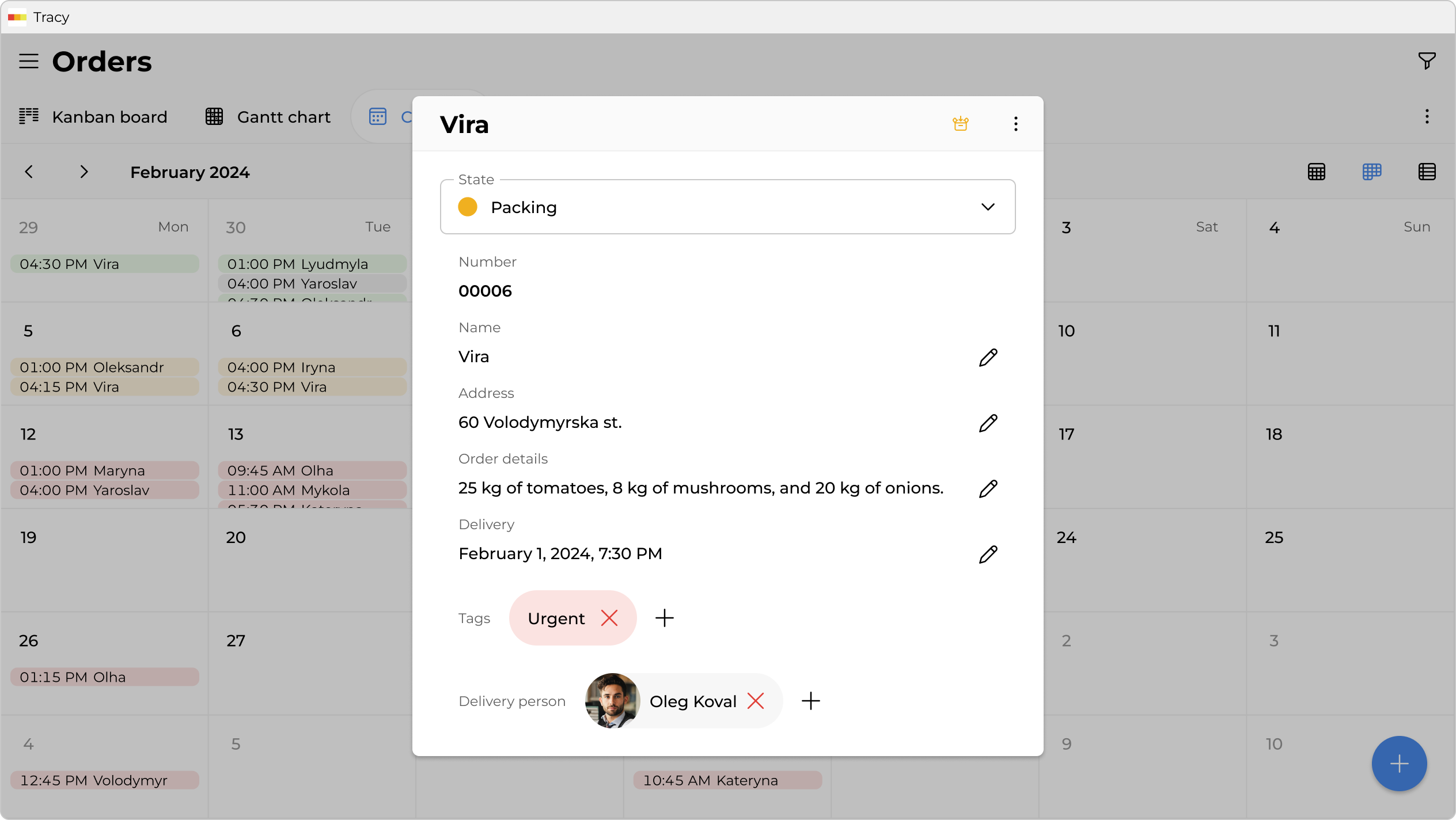
Instead of a shared table where everyone elbows each other, you create an order management app in Tracy with clear visibility rules.
- Data Isolation: You set a simple rule: “Employees see orders only from their store”. That’s it. A franchisee physically cannot see what the neighbor ordered because these records simply do not exist for them.
- No Retroactive Changes: You configure field behavior depending on the stage. For example, a store can change the number in the “quantity” field while the order has the status “New”. But as soon as the warehouseman moves it to “Collecting” status—the field is automatically locked for editing. No more misunderstandings with swapped numbers.
The HR Case
You no longer need to use messengers as a way to manage access control when working with candidates. Configure the system so that it automatically adapts the data display for each participant.
- Different Fields for Different Eyes: You define that the “Recruiter” role sees everything, while the “Technical Specialist” role in the same candidate card sees everything except the “Desired Salary” and “Recruiter Impressions” fields. For the Tech Lead, these fields do not exist, so there is no chance for bias.
- Access via Assignment: You don’t need to go into security settings every time. Access is granted naturally: you simply select the necessary colleague in the “Interviewer” field of a specific card, and the system automatically opens access for them only to this candidate. As soon as the interview is over and you remove the assignment or the card moves to the next stage—access disappears.

“Foolproof” Processes
Tracy allows you to configure Stage Gating. You can set hard rules:
- Cannot move a deal to “Contract” status until a scan of the document is uploaded.
- Cannot close a task until the “Time Spent” field is filled.
This turns chaos into a conveyor belt. The system leads the user by the hand and prevents them from making mistakes.
Guest Access: Collaboration Without Extra Links
What about when you need to get information from someone outside—for example, to clarify order details with a client?
When working with spreadsheets, this usually turns into routine: you write to the client in a messenger, wait for an answer, and then the manager manually copies the text from the chat and pastes it into the corresponding cell of the file. This is a wasted time and a risk of mixing something up or forgetting to transfer it.
In Tracy, you can generate a unique link directly to a specific card. The client clicks on it and sees a simplified interface: for example, only the status of their order and a field for a comment or photo upload. They don’t need registration or access to your system. They simply enter data, and it instantly appears in the corresponding field of your record. No “broken telephone” and no manual text transfer.
Conclusion
Spreadsheets remain the indispensable standard for financial modeling and individual analytics. However, using them as a platform for operational processes involving finances and zones of responsibility creates unjustified operational risks. Trying to build a secure perimeter inside Excel is a fight against the file system architecture itself.
The query “how to hide a column in Google Sheets” arises not because you don't know the tool well, but because you have outgrown it.
Tracy allows you to build reliable internal tools as easily as you built tables, but without fear for data security. You get a system where everyone sees exactly as much as they should, and processes work like clockwork, not like improvisation.
Perhaps it’s time to move from situational visibility settings to systemic process management.
 Dmytro Sikorskyi